

Download Super Screen Capture – Free, Secure & Versatile Screen Capture Tool for Windows
Super Screen Capture is a lightweight, reliable, and user-friendly screen capture software designed for Windows users who need a fast and efficient way to capture screenshots and record screen activity. Despite being released in 2007, this tool remains a popular choice among individuals and professionals alike, especially in regions like Egypt, Saudi Arabia, and Canada. With a minimal footprint and straightforward interface, Super Screen Capture offers essential features such as full-screen capture, window capture, region selection, and basic image editing tools.
The software supports multiple output formats and allows users to save, edit, and share their captures with ease. Although it’s a trial version, the free access provides full functionality for a limited time, making it ideal for testing before deciding on a purchase. With regular updates addressing critical bugs—such as issues with window capture, scroll capture, and image editing—Super Screen Capture continues to deliver a stable and secure experience.
Whether you're documenting software issues, creating tutorials, or sharing visual content, this tool is a dependable companion for everyday screen capture needs.
Key Features of Super Screen Capture
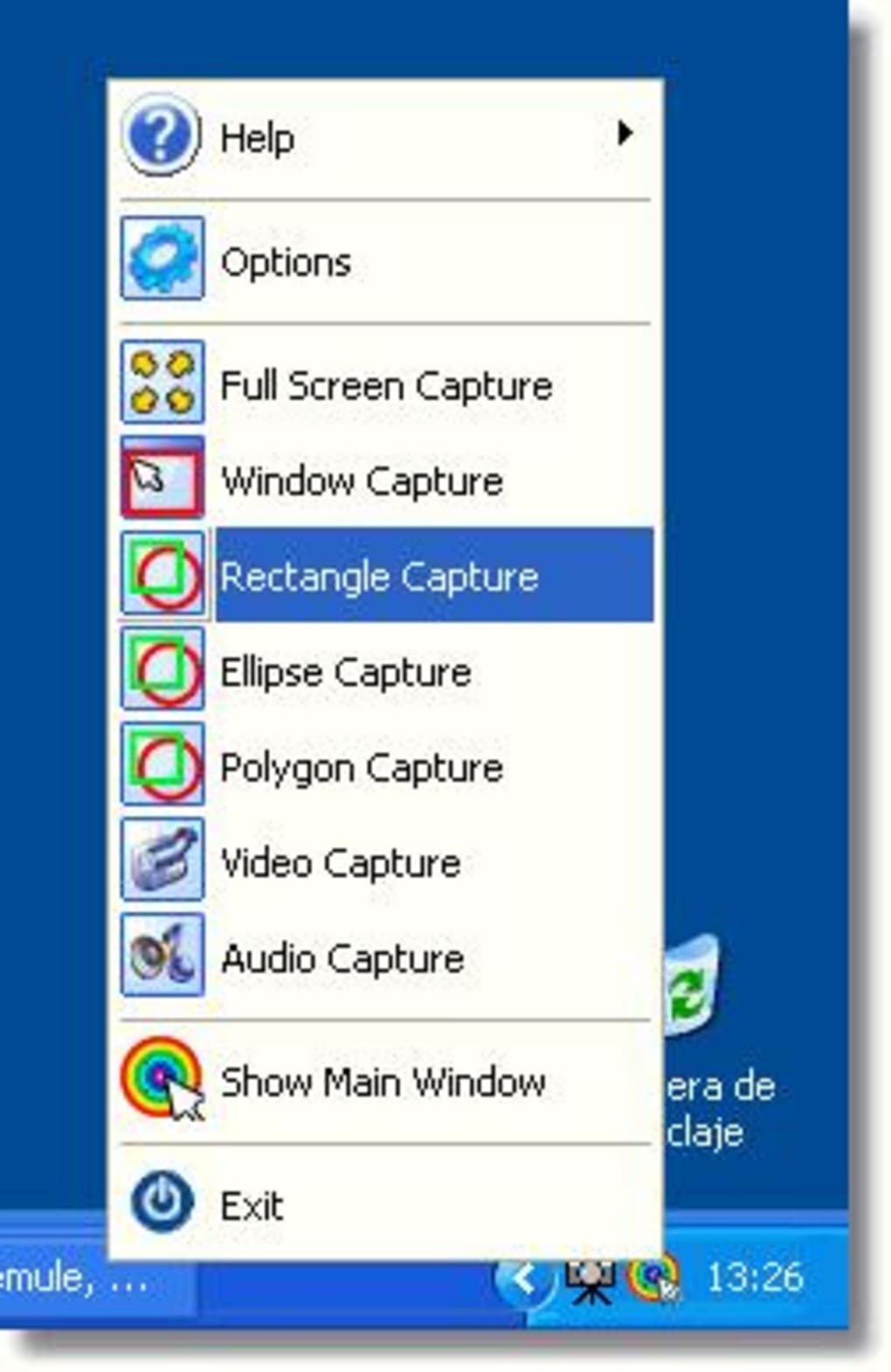
Super Screen Capture stands out in the crowded field of screen capture tools thanks to its clean design and robust feature set. One of its most praised features is the ability to capture full-screen, specific windows, or custom screen regions with a single click. This flexibility makes it suitable for both casual users and professionals who need precision. The software supports multiple capture modes, including timed captures and continuous screen recording, which is particularly useful for creating step-by-step guides or demonstrating software workflows.
Another standout feature is the built-in image editor. Users can crop, resize, annotate, and adjust brightness and contrast directly within the application. This eliminates the need to switch to external tools for minor edits, saving valuable time. The tool also allows for easy image export in common formats like PNG, JPG, and BMP, ensuring compatibility with most platforms and applications.
Super Screen Capture also includes a customizable hotkey system, enabling users to trigger captures instantly without navigating through menus. This is especially beneficial during live presentations or when documenting fast-paced workflows. Additionally, the software supports automatic saving to a designated folder, helping users maintain organized file structures. The recent updates have improved stability, fixing long-standing issues such as failed window captures and problems with scroll capture—ensuring a smoother experience across different applications.
For those who value privacy and security, Super Screen Capture operates offline and does not collect user data, making it a trustworthy choice for sensitive tasks. Its minimal system requirements mean it runs smoothly even on older Windows systems like Windows 95 and XP, expanding its accessibility to users with legacy hardware.
How to Install and Use Super Screen Capture
Installing Super Screen Capture is a straightforward process, especially for users familiar with older Windows environments. Begin by downloading the installer from a trusted source. The file is small in size, ensuring a quick download even on slower connections. Once downloaded, run the executable and follow the on-screen prompts. The installation wizard is intuitive and requires minimal input—simply choose your preferred installation directory and click “Next” until the process completes.
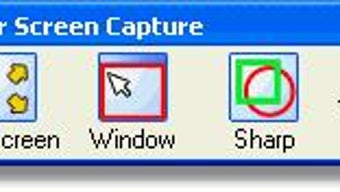
After installation, launch the application. The main interface is clean and uncluttered, with clearly labeled buttons for full-screen capture, window capture, and region selection. To take a screenshot, simply click the desired mode and confirm with a single keystroke or mouse click. For more advanced options, access the settings menu to customize hotkeys, default save locations, and output formats.
Using the built-in editor is equally simple. After capturing an image, you’ll be prompted to edit it. From here, you can crop unwanted areas, add arrows or text annotations, and adjust image quality. Once satisfied, click “Save” to store the file locally or “Copy” to paste it directly into emails, documents, or social media platforms.
For users who want to automate tasks, Super Screen Capture supports scheduled captures. You can set the software to take screenshots at regular intervals or at specific times—ideal for monitoring system performance or capturing time-lapse content. The tool also logs each capture in a history panel, allowing you to revisit and manage previous screenshots easily.
Compatibility and System Requirements
Super Screen Capture is designed to run on a wide range of Windows operating systems, including older versions such as Windows 95, 98, ME, 2000, XP, and Vista. This broad compatibility makes it an excellent choice for users still relying on legacy systems or those who prefer lightweight software that doesn’t strain older hardware. Despite its age, the software continues to function reliably on modern Windows 10 and Windows 11 systems through compatibility mode, ensuring it remains accessible to a diverse user base.
The application is lightweight, requiring minimal RAM and CPU usage, which means it won’t slow down your computer during capture sessions. This efficiency is particularly beneficial when running multiple programs simultaneously or when capturing high-resolution screens.
Although Super Screen Capture is currently only available for Windows, its core functionality makes it a strong contender in the screen capture space. Users on Mac or mobile platforms (iOS, Android) will need to explore alternative tools, but Windows users seeking a no-frills, dependable solution will find this software highly effective.
For those concerned about security, the software does not require internet access to function and does not collect personal data, ensuring your captures remain private. The trial version offers full access to all features, allowing you to test the software thoroughly before deciding on a purchase.
Pros and Cons of Super Screen Capture
- Pros:
- Lightweight and fast, ideal for older or low-spec systems
- Simple, intuitive interface suitable for beginners
- Supports multiple capture modes: full screen, window, region
- Includes basic image editing tools (crop, annotate, resize)
- Customizable hotkeys for instant capture
- Offline operation with no data collection
- Stable performance with recent bug fixes
- Free trial with full feature access
- Cons:
- Only available for Windows (no Mac or mobile versions)
- Outdated interface compared to modern screen capture tools
- Limited advanced features like video recording or OCR
- No cloud integration or automatic backup
- Older version (2.5, last updated in 2007) may raise compatibility concerns
Frequently Asked Questions (FAQ)
- Is Super Screen Capture free to download and use?
Yes, Super Screen Capture offers a free trial version with full access to all features. While it is not permanently free, the trial allows users to test the software extensively before deciding to purchase a license.
- Can I use Super Screen Capture on Windows 10 or Windows 11?
Yes, Super Screen Capture can run on Windows 10 and Windows 11, although it may require running in compatibility mode for optimal performance. The software is officially designed for older Windows versions but remains functional on modern systems.
- Does Super Screen Capture support video recording?
No, Super Screen Capture is focused solely on static image capture. It does not include video recording capabilities. For screen recording, users may consider alternatives like oCam or FastStone Capture.
- What image formats does Super Screen Capture support?
The software supports common image formats including PNG, JPG, and BMP. These formats ensure broad compatibility across platforms and applications.
- How do I fix the issue where Super Screen Capture can't capture a window?
Recent updates have addressed this issue. Make sure you’re using the latest version (2.5) and that the software is running with administrator privileges. If problems persist, try restarting the application or your system.
- Is Super Screen Capture secure to use?
Yes, Super Screen Capture operates offline and does not collect or transmit user data. It’s a secure choice for capturing sensitive information without privacy risks.
Final Verdict and Call to Action
Super Screen Capture remains a solid choice for Windows users seeking a no-nonsense, reliable screen capture tool. Despite its age, the software delivers consistent performance, especially on older systems. Its lightweight design, intuitive interface, and built-in editing tools make it a practical solution for everyday screenshot needs. While it lacks modern features like video recording and cloud sync, its core functionality is well-executed and secure.
If you’re a Windows user who values simplicity, speed, and privacy, Super Screen Capture is worth downloading. Whether you're creating documentation, troubleshooting software, or sharing visual content, this tool gets the job done efficiently. Don’t miss the chance to try it for free—download Super Screen Capture today and experience hassle-free screen capture on your Windows PC.
Download now and start capturing your screen with confidence!







